
 0
0
 0
0
Last Updated: October 28, 2026
Reading Time: 14–16 minutes
Are you wondering, “How do I deactivate my Facebook account?” Maybe you want to take a break from social media, protect your privacy, or spend less time scrolling through posts and videos. Whatever your reason, Facebook allows you to temporarily deactivate your account without permanently losing your photos, friends, or posts.
Deactivating Facebook is different from deleting it. When you deactivate your account, Facebook hides your profile from other people, but your information remains saved. You can return whenever you want by logging back into your account.
The process is available on Android phones, iPhones, tablets, laptops, and desktop computers. However, Facebook occasionally changes its settings menus, so the steps may look slightly different depending on your device and account.
In this guide, you will learn how to deactivate your Facebook account, what happens afterward, how to continue using Messenger, and how to reactivate your profile when you are ready.
How Do I Deactivate My Facebook Account? Quick Answer
To temporarily deactivate your Facebook account, follow these steps:
- Open the Facebook app or visit Facebook.com.
- Log in to the account you want to deactivate.
- Open Settings & privacy.
- Select Settings.
- Open Accounts Center.
- Select Personal details.
- Tap Account ownership and control.
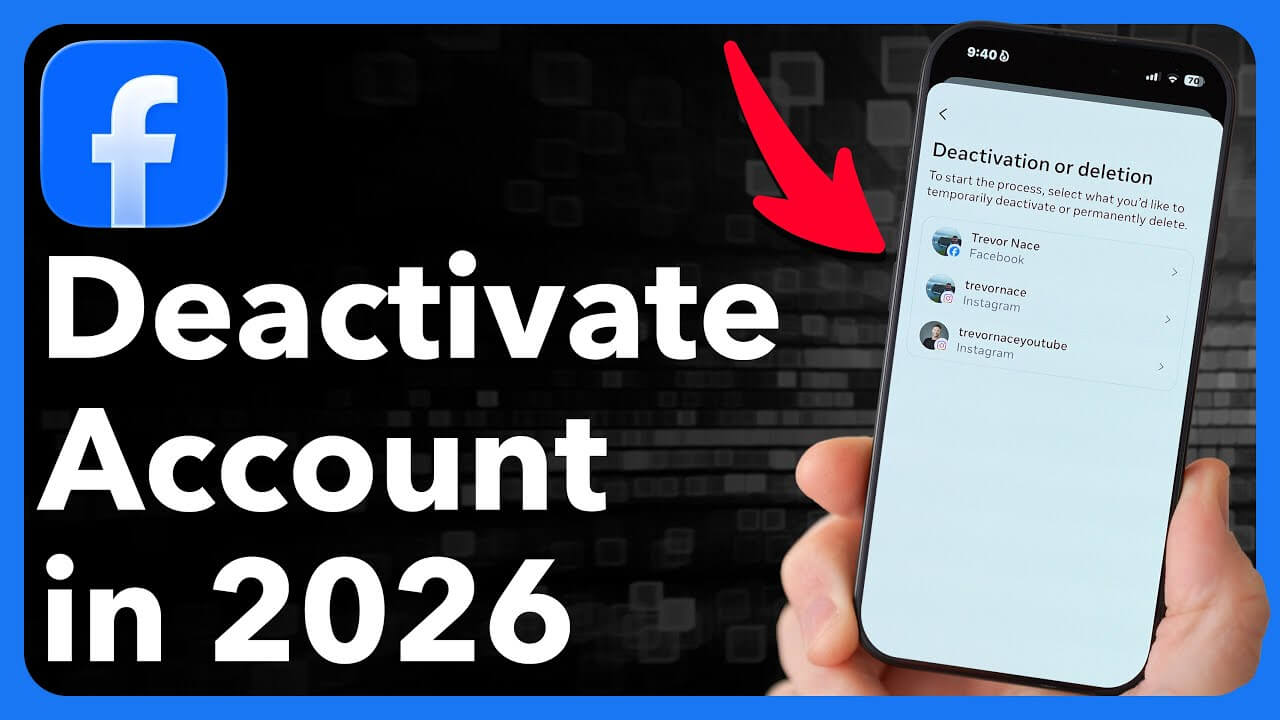
- Choose Deactivation or deletion.
- Select your Facebook account.
- Choose Deactivate account.
- Tap Continue.
- Follow the instructions and confirm your choice.
After completing these steps, Facebook will deactivate your profile. Your account will generally become hidden from other Facebook users, although some previous activities and messages may remain visible.
Important: Choose “Deactivate account,” not “Delete account.” Deactivation is temporary, while deletion is intended to permanently remove your account.
If your settings show Meta Account or Manage accounts instead of the older Accounts Center menu, open the account-management settings and look for Deactivation or deletion. Facebook is updating account-management menus, so not everyone sees the same layout.
What Does Deactivating a Facebook Account Mean?
Deactivating Facebook means temporarily disabling your account without permanently removing its information.
For example, imagine that you want to avoid Facebook for three months because you are preparing for an important examination. You do not want to receive notifications, browse the news feed, or spend time checking other people’s posts.
Instead of deleting your account, you can deactivate it.
Once deactivated, your Facebook profile becomes unavailable to most other users. People generally cannot visit your timeline or see your profile as they normally would.
However, Facebook keeps your account information so that you can return later.
What Happens When You Deactivate Facebook?
Here are some important changes:
- Your Facebook profile becomes hidden from most people.
- Your photos, videos, and posts are not permanently deleted.
- Your Facebook friends and account information remain saved.
- Messages you previously sent may still be visible to recipients.
- Some previous comments and group activities may remain accessible.
- Messenger can continue working if you choose to use it.
- Facebook Pages you exclusively control may be affected.
- You can reactivate your account by logging back in.
Deactivation is particularly useful when you want a temporary break but do not want to start over with a new account.
Does Deactivating Facebook Delete Everything?
No. Deactivating your Facebook account does not permanently erase your photos, videos, conversations, or other saved account information.
Facebook retains your information so it can restore your profile if you decide to reactivate it.
However, deactivation is not the same as removing your personal information from Facebook’s systems. If your main goal is permanent data removal, you should review Facebook’s account deletion options instead.
How to Deactivate Facebook Account on Android?
If you use a Samsung, Google Pixel, OnePlus, Motorola, or another Android smartphone, you can deactivate Facebook directly from the app.
Step 1: Open the Facebook App
Find the Facebook app on your Android phone and tap its icon.
Make sure you are logged into the correct Facebook account.
If you have more than one Facebook account, check your profile name before making changes.
Step 2: Open the Facebook Menu
Tap the Menu icon, which usually appears as three horizontal lines or your profile picture near the top-right corner of the Android app.
The menu contains your account settings, shortcuts, and other Facebook features.
Step 3: Go to Settings & Privacy
Scroll through the menu until you find Settings & privacy.
Tap it to expand the available options.
Then select Settings.
Step 4: Open Accounts Center
On the Settings page, find Accounts Center, sometimes labeled Meta Accounts Center.
This section manages account information, passwords, privacy-related controls, and connected Meta accounts.
Tap it to continue.
Step 5: Select Personal Details
Inside Accounts Center, find and select Personal details.
This area contains settings related to your identity and account management.
If the option is not visible, check whether your account has a newer Manage accounts interface.
Step 6: Open Account Ownership and Control
Tap Account ownership and control.
This option helps you manage important account decisions, including temporary deactivation and permanent deletion.
Step 7: Choose Deactivation or Deletion
Find Deactivation or deletion and tap it.
Facebook may display several accounts or profiles if you have connected accounts.
Choose the Facebook account you want to deactivate.
Step 8: Select Deactivate Account
Facebook will display the available account-management choices.
Select Deactivate account rather than Delete account.
Then tap Continue.
Step 9: Confirm Your Decision
Facebook may ask you to enter your password, select a reason for leaving, or review what happens to your account.
Follow the instructions displayed on your screen.
Check whether Facebook offers an automatic reactivation option, especially if you want your account to remain deactivated until you personally return.
Step 10: Complete Deactivation
Tap the final confirmation option to finish.
Your Facebook account should now be deactivated.
Tip: If the option is missing from the Android app, update Facebook from the Google Play Store or try completing the process through a mobile browser.
How to Deactivate Facebook Account on iPhone
If you own an iPhone, you can temporarily deactivate Facebook using the iOS app.
The process is similar to Android, although the menu icon may appear in a different location.
Step 1: Launch Facebook
Open the Facebook app on your iPhone.
Sign in using your registered email address, phone number, or another available login method.
Step 2: Tap the Menu Button
Find the Menu option, usually located near the bottom-right corner of the iPhone screen.
Tap it to open your Facebook account menu.
Step 3: Open Facebook Settings
Scroll down and select Settings & privacy.
Next, tap Settings.
This opens the page where you can manage your Facebook account.
Step 4: Enter Accounts Center
Find Accounts Center and tap it.
You may see information about connected Facebook and Instagram accounts.
Make sure you select the correct account before continuing.
Step 5: Locate Deactivation Settings
Follow this path:
Personal details → Account ownership and control → Deactivation or deletion
Depending on your app version, Facebook may place account-management controls under a different heading.
Step 6: Select Your Facebook Profile
If Facebook displays multiple profiles or accounts, choose the one you want to deactivate.
Do not assume the first account shown is the correct one.
Step 7: Choose Deactivate Account
Select Deactivate account and tap Continue.
Facebook may explain what happens to your profile, Pages, and Messenger access.
Read these details before moving forward.
Step 8: Verify and Confirm
Enter your account password if requested.
Select a reason for deactivation if Facebook asks for one.
Complete the remaining confirmation steps.
Your Facebook profile will become deactivated after Facebook processes the request.
Helpful advice: If you use Facebook and Instagram through the same Accounts Center, deactivating the selected Facebook account does not automatically mean your Instagram account will also be deactivated. Review the account selection carefully.
How to Deactivate Facebook Account on a Computer or Laptop
Many people prefer managing their Facebook settings on a larger screen.
You can deactivate Facebook using Google Chrome, Microsoft Edge, Safari, Firefox, or another supported web browser.
Step 1: Visit Facebook
Open your browser and visit: https://www.facebook.com
Enter your login information and access your Facebook account.
Step 2: Open Your Profile Menu
Click your profile picture near the top-right corner of the Facebook page.
A dropdown menu will appear.
Step 3: Select Settings & Privacy
Click Settings & privacy.
Next, select Settings.
You will be directed to Facebook’s account settings.
Step 4: Find Accounts Center
Locate Accounts Center, usually accessible from the settings navigation.
Click to open it.
If your account shows a newer Meta Account interface, use its account-management section.
Step 5: Open Personal Details
Select Personal details.
Then click Account ownership and control.
Step 6: Select Deactivation or Deletion
Click Deactivation or deletion.
Choose the Facebook account you want to deactivate.
Step 7: Choose Temporary Deactivation
Select Deactivate account.
Click Continue.
Read the information Facebook displays about the consequences of deactivation.
Step 8: Enter Your Password
For security, Facebook may ask you to confirm your identity by entering your account password.
Enter the correct password and follow the remaining instructions.
Step 9: Confirm Account Deactivation
Complete the final confirmation.
Your account will be temporarily deactivated.
You can reactivate it later by signing back into Facebook.
Can I Deactivate My Facebook Account Without the App?
Yes. You do not need the Facebook app to deactivate your account.
If your phone has limited storage, the Facebook app is not working, or you simply prefer using a browser, you can complete the process online.
Follow these steps:
- Open Chrome, Safari, or another mobile browser.
- Visit Facebook.com.
- Log into your account.
- Open the Facebook menu.
- Select Settings & privacy.
- Open Settings and Accounts Center.
- Locate the account deactivation option.
- Choose Deactivate account.
- Complete the confirmation process.
You can also try accessing Meta Accounts Center after signing in.
The exact menu layout may differ from the Facebook app.
Can I Deactivate Facebook Using Facebook Lite?
Facebook Lite users may also be able to access account settings and deactivation controls.
Open Facebook Lite and look for Settings & privacy, then the account-management section.
If you cannot locate Deactivation or deletion, use your phone’s browser and follow the standard Facebook website instructions.
The browser method is a useful alternative because Facebook Lite does not always display settings in the same way as the full Facebook application.
Facebook Deactivation vs. Deletion: What’s the Difference?
Before making a final decision, understand the difference between temporarily deactivating and permanently deleting your Facebook account.
| Feature | Deactivate Facebook | Delete Facebook |
|---|---|---|
| Account status | Temporarily disabled | Scheduled for permanent removal |
| Facebook profile | Generally hidden | Removed |
| Photos and posts | Saved for reactivation | Scheduled for deletion |
| Friends list | Retained | Not recoverable after deletion is final |
| Messenger | May remain available | Affected by account deletion |
| Reactivation | Usually possible anytime | Deletion can generally be canceled within 30 days |
| Ideal for | Temporary break | Permanent departure |
| Data stored by Meta | Retained | Removed according to deletion and retention processes |
When Should You Deactivate Facebook?
Deactivation may be the better option when:
- You want to spend less time on social media.
- You need a break during studies or examinations.
- You want to avoid unnecessary notifications.
- You are taking a temporary digital detox.
- You want to hide your Facebook profile without losing your account.
- You are uncertain whether you want to leave Facebook permanently.
When Should You Delete Facebook Instead?
Permanent deletion may be more appropriate if you no longer want to use Facebook and wish to request the removal of your account information.
However, permanent deletion affects your ability to recover the account and use connected services.
Facebook generally provides a 30-day cancellation period for account deletion requests. After that period, recovery is no longer available through the normal cancellation process.
Deletion and deactivation should never be confused.
Can I Deactivate Facebook but Keep Messenger?
Yes. In many cases, you can deactivate your Facebook profile while continuing to use Facebook Messenger.
This is helpful if you want to avoid Facebook posts and the news feed but still want to communicate with family, friends, or colleagues.
For example, suppose you regularly use Messenger to chat with relatives who live in another country. You might prefer to hide your Facebook profile while keeping Messenger available.
How to Keep Messenger Active
- Open Facebook and go to Settings.
- Enter Accounts Center.
- Select Personal details.
- Open Account ownership and control.
- Choose Deactivation or deletion.
- Select your Facebook account.
- Choose Deactivate account.
- Review any options related to Messenger.
- Complete the deactivation process.
- Open Messenger and check that you can still access your conversations.
When Messenger remains active, people may still be able to contact you through the messaging service.
Your profile picture may also remain visible in Messenger conversations.
Does Using Messenger Reactivate Facebook?
Normally, using Messenger while your Facebook account is deactivated does not reactivate your main Facebook profile.
However, signing directly into Facebook or using certain Facebook-connected login features may reactivate it.
If your goal is to remain away from Facebook, avoid signing into Facebook unnecessarily.
How to Deactivate Facebook Messenger Too
Some users want to take a complete break from Facebook and Messenger.
If you do not want Messenger to remain active, you may need to deactivate it separately after deactivating your Facebook account.
Depending on your account and Messenger app version, try the following:
- Open the Messenger app.
- Tap the menu icon.
- Open Settings.
- Look for Accounts Center.
- Select Personal details.
- Open Account ownership and control.
- Find Deactivation or deletion.
- Follow the instructions available for Messenger or the associated Facebook account.
- Confirm your decision if the option is offered.
Messenger deactivation controls can vary by account type and region.
If you cannot find the relevant option, consult Facebook’s current Help Center instructions rather than selecting permanent account deletion accidentally.
What Happens to Your Facebook Photos, Posts, and Friends?
One of the biggest concerns people have before deactivating Facebook is whether their personal information will disappear forever.
Fortunately, temporary deactivation does not normally erase your existing profile content.
Facebook Photos
Your uploaded photos remain associated with your account.
They are generally hidden with your profile while the account is deactivated.
When you reactivate Facebook, your photos should become available again.
Facebook Posts
Your timeline posts remain saved.
Other users generally cannot browse your deactivated profile to view those posts.
However, some activity outside your timeline may remain visible.
Facebook Friends
Your friends list is retained.
You normally do not need to send new friend requests when you reactivate your account.
Your previous connections should remain available.
Facebook Comments
Some comments and previous activities may remain visible, depending on where they were posted.
For example, comments in groups or certain public discussions may not disappear immediately simply because you deactivated your profile.
Facebook Messages
Messages you already sent to other people may remain in their Messenger conversations.
Deactivation does not guarantee that every message will disappear from recipients’ inboxes.
This is an important privacy consideration.
If you are deactivating Facebook to remove an old conversation, remember that account deactivation is not a message-retraction tool.
What Happens to Facebook Pages and Groups?
If you manage a Facebook Page or participate in multiple groups, consider how deactivation may affect those activities.
Facebook Pages You Manage
If you are the only person with full control of a Facebook Page, deactivating your personal Facebook account may also affect that Page’s availability or management.
For example, suppose you operate a small business and use your personal Facebook account to manage its business Page.
If your personal account is deactivated without arranging another authorized manager, you could interrupt access to the business Page.
Before deactivation:
- Open your Facebook Page.
- Review Page access settings.
- Check who has permission to manage the Page.
- Add another trusted person with the appropriate access if needed.
- Confirm that the person can manage the Page.
- Only then proceed with personal account deactivation.
Do not share your Facebook password with another person to provide Page access.
Facebook Groups
If you manage a Facebook group, consider appointing another administrator before deactivating your profile.
This helps the group continue operating while you are away.
Group administrators may still be able to see some of your previous group activity, including posts and comments.
How to Reactivate Your Facebook Account
Changed your mind? You can usually restore a temporarily deactivated Facebook account simply by logging back in.
Step 1: Open Facebook
Visit Facebook.com or launch the Facebook app.
Step 2: Enter Your Login Information
Enter the email address or mobile phone number associated with your account.
Then enter your password.
Step 3: Complete Security Verification
If Facebook requests an identity check, follow the instructions.
You may need to enter a verification code or complete another security step.
Step 4: Access Your Restored Account
After successful login, your Facebook account should reactivate.
Your profile, photos, posts, and friends should become accessible again.
Can I Reactivate Facebook After One Year?
Generally, yes. Facebook does not set a standard 30-day or one-year expiration date for voluntary account deactivation.
You can normally reactivate your account even after a long break, provided that the account still exists and you can complete any required login verification.
However, account access can be affected by security restrictions, policy enforcement, or other exceptional circumstances.
Will My Friends Know When I Reactivate?
Facebook does not ordinarily send a dedicated notification announcing every account reactivation.
However, your friends may notice that your profile is available again or see your new activity.
How to Deactivate Facebook If You Forgot Your Password
If you cannot remember your Facebook password, recover access to your account before trying to deactivate it.
Step 1: Open the Facebook Login Page
Visit Facebook.com.
Step 2: Select Forgot Password
Click or tap Forgot password?
Step 3: Find Your Account
Enter your registered email address or phone number.
Follow Facebook’s instructions to identify your account.
Step 4: Verify Your Identity
Facebook may send a verification code to an email address or phone number associated with the account.
Complete the available recovery steps.
Step 5: Reset Your Password
Choose a strong new password.
Avoid using passwords you have already used for other websites.
Step 6: Deactivate Your Account
After regaining access, return to Settings and follow the deactivation procedure described earlier.
Security warning: Never share your password, verification codes, or recovery links with anyone offering to deactivate your account on your behalf.
Use Facebook’s official website and recovery tools.
Why Can’t I Deactivate My Facebook Account?
Sometimes Facebook users cannot locate the deactivation option or complete the process.
There are several possible reasons.
Problem 1: Deactivation Option Is Missing
Possible reason: Facebook has changed the location of the setting, or your account uses a different account-management interface.
Solution:
- Open Settings and look for Accounts Center.
- Check Personal details and Account ownership and control.
- Look for Meta Account or Manage accounts if available.
- Try Facebook in a desktop browser.
- Check Facebook’s official Help Center for updated instructions.
Problem 2: Facebook Keeps Asking for a Password
Possible reason: Facebook requires identity verification before allowing an important account change.
Solution:
Enter your correct password.
If you forgot it, use Facebook’s official password recovery process.
Do not repeatedly guess passwords, as this can trigger additional security checks.
Problem 3: Facebook App Is Not Working
Possible reason: The application may be outdated or experiencing a temporary problem.
Solution:
Update Facebook through the App Store or Google Play Store.
Restart the application and try again.
If the issue continues, sign in through a browser.
Problem 4: Accounts Center Is Not Loading
Possible reason: The problem could be related to internet connectivity, browser extensions, cookies, or a temporary Facebook service issue.
Solution:
Try another browser or a stable internet connection.
Disable problematic extensions temporarily if appropriate.
Avoid clearing saved login information unless you know your password and recovery methods.
Problem 5: Account Deactivates but Becomes Active Again
Possible reason: You signed into Facebook again, or your account was configured to reactivate after a selected period.
Solution:
Check whether the confirmation flow offers a scheduled reactivation option.
Choose a manual reactivation option if available.
Avoid signing directly into Facebook while you want your profile to remain inactive.
What to Do Before Deactivating Your Facebook Account
Before you deactivate Facebook, complete a few important preparations.
1. Check Your Login Information
Make sure you know the password associated with your Facebook account.
Also verify that your registered email address or phone number is accessible.
These details may be needed if you decide to reactivate the account.
2. Download Your Facebook Information
You may want to save copies of your photos, videos, and important posts.
To find Facebook’s data download tools:
- Open Settings.
- Go to Accounts Center.
- Select Your information and permissions.
- Choose Download your information or the corresponding export option.
- Select the information you want.
- Choose your preferred file format and other available settings.
- Request the export.
- Download it when Facebook makes it available.
Keep the downloaded file in a secure location, especially if it includes personal conversations or private information.
3. Check Facebook Login Connections
Some third-party websites and applications allow users to sign in using Facebook.
Review these accounts before deactivation.
If you rely on Facebook Login for an important service, consider adding another supported login method, such as an email address and password.
Otherwise, you may have difficulty signing in while your Facebook account is deactivated.
4. Review Your Facebook Pages
Check whether you are the only administrator or person with full control of any important Page.
Arrange authorized access for another trusted manager if necessary.
5. Decide Whether to Keep Messenger
If you still want to communicate with your contacts, check that Messenger will remain available.
If you want to stop using Messenger too, review its separate deactivation options.
6. Check Automatic Reactivation Settings
If Facebook offers an option to reactivate after a selected period, review it carefully.
Choose the setting that matches how long you want your Facebook break to last.
Does Deactivating Facebook Remove Your Profile From Google?
When your Facebook profile is deactivated, its public profile page normally becomes unavailable to other users.
However, this does not guarantee that every reference to your profile will immediately disappear from Google, Bing, or other search engines.
Search engines may temporarily retain previously indexed URLs or snippets.
For example, if your Facebook profile was publicly visible before deactivation, an old search result might continue appearing for some time.
The link may no longer display the original profile information.
If you are concerned about personal information appearing in search results, review the search engine’s content removal tools.
Google provides a Results about you feature for certain categories of personal information.
Remember that removing a search result and deleting information from the original source are different actions.
Can You Temporarily Deactivate Facebook for 7 Days or 30 Days?
Yes, you can keep Facebook deactivated for a short period, but a specific duration is not required.
You may choose to remain deactivated for a week, a month, several months, or longer.
Facebook may offer an automatic reactivation option during deactivation.
For example:
Example 1: Seven-Day Break
You want to focus on work for one week.
Deactivate your Facebook profile and choose a suitable reactivation option if Facebook provides one.
Example 2: Thirty-Day Social Media Break
You want to avoid social media distractions for a month.
Deactivate Facebook and avoid logging back into the main platform until your break ends.
Example 3: Indefinite Break
You are unsure when you want to return.
Deactivate Facebook and choose to reactivate manually if the option is available.
You can generally log back in whenever you decide to return.
Does Deactivating Facebook Improve Privacy?
Deactivation can improve how private your Facebook profile is from other users because your profile becomes hidden from normal public access.
However, it does not guarantee complete anonymity or permanently erase your personal information.
Meta may continue retaining account information according to its applicable policies.
Previously sent messages can remain visible to recipients.
Some group activities may also continue to be accessible.
If privacy is your main concern, consider reviewing your Facebook privacy settings before deciding whether deactivation is sufficient.
Useful precautions include restricting who can see your posts, reviewing public profile details, limiting unwanted contact, and checking connected applications.
Remember that account deactivation is primarily a temporary account-management feature, not a complete data-erasure process.
Frequently Asked Questions About Facebook Deactivation
Open Facebook Settings, enter Accounts Center, select Personal details, open Account ownership and control, and choose Deactivation or deletion. Select your Facebook account, choose Deactivate account, and complete the confirmation process.
Open the Facebook app on Android or iPhone, tap Menu, go to Settings & privacy, and open Settings. Find Accounts Center and select the deactivation option under account ownership settings.
Yes. Facebook offers temporary account deactivation. It hides your profile while retaining your account information so you can return later.
No. Temporary deactivation normally preserves your photos, posts, videos, and other account content. Your profile content should become available again after reactivation.
Your main Facebook profile generally becomes unavailable through normal Facebook searches. However, previous messages, certain group activities, and Messenger visibility may remain.
Yes, if you continue using Messenger, other people may still be able to contact you through it. If you also deactivate Messenger, normal messaging availability will be affected.
Facebook generally allows users to keep voluntarily deactivated accounts inactive indefinitely. There is no standard requirement to reactivate after 30 days.
Not necessarily. Facebook may offer an optional automatic reactivation setting. If you select such an option, your account may reactivate after the chosen period. Otherwise, you can normally reactivate manually.
Signing into Facebook generally reactivates the account. Your saved profile information should become accessible again after successful login.
Usually, yes. Facebook and Instagram accounts can have separate activation states, even when managed through the same Accounts Center. Make sure you select only the account you want to deactivate.
Facebook does not normally send a direct notification announcing that you have deactivated your account. However, friends may notice that your profile is no longer available.
Facebook may require password verification before completing deactivation. If you do not know your password, recover your account through Facebook’s official recovery process first.
No. Uninstalling Facebook simply removes the application from your device. Your Facebook account can remain active, and other people may still be able to view your profile.
To deactivate your account, you must use Facebook’s account-management settings.
Yes. You can access your Facebook account using another phone, tablet, laptop, or desktop computer and complete deactivation after signing in securely. Avoid using an untrusted or shared device to manage sensitive account settings.
Your friends list is normally saved. When you reactivate your Facebook account, your existing friends should still be connected to your profile.
Facebook may have moved the option to another settings location. Check Accounts Center, Meta Account, or account-management controls. You can also try updating the app or using the desktop website.
A Page may be affected if your personal account is the only account with full control. Before deactivating, review Page access and arrange another authorized manager if necessary.
Facebook generally allows users to deactivate and reactivate their accounts more than once. However, Facebook may apply temporary restrictions or verification requirements to repeated account changes.
Messenger may provide account-management settings linked to Facebook, but the available options depend on your app and account configuration. For the clearest instructions, use Facebook’s main account settings or Accounts Center.
No. Deactivation is designed to be temporary. You can normally reactivate your account by logging back in. If you want permanent removal, review the separate Delete account option.
Final Thoughts
If you have been asking, “How do I deactivate my Facebook account?”, the process is straightforward once you find the correct account settings.
Open Facebook, go to Settings & privacy, access Accounts Center, select Account ownership and control, and choose Deactivation or deletion. Select Deactivate account and complete the confirmation process.
Your Facebook profile will become hidden from most other users, while your photos, posts, friends, and other account information remain saved for a future return.
Before deactivating, check your Messenger preferences, connected applications, Facebook Pages, and login recovery information.
Most importantly, remember that deactivation is temporary, while account deletion is intended to be permanent.
For the latest account-specific instructions, visit the official Facebook Help Center.
Disclaimer: This is an independent educational guide and is not affiliated with, sponsored by, or endorsed by Meta or Facebook. Menu names and available options may vary by device, app version, account type, or region.


